Advanced Model Builder
Use the Advanced Model Builder in Alviss AI for precise control over complex business and marketin models.
The Advanced Model Builder is tailored for experienced users who require precise control over model architecture to capture complex dynamics, interactions, and business-specific behaviors. Unlike the [Basic Model Builder](../Basic Model Builder.md), this tool allows you to construct models from the ground up using Alviss AI's intuitive graphical interface, incorporating advanced statistical distributions, custom transformations, and hierarchical structures.
This builder leverages Bayesian modeling principles to enable flexible prior specifications, effect directions, and variable interactions, making it ideal for scenarios where default assumptions may not suffice—such as modeling non-linear effects, synergies between marketing channels, or external economic factors.
Steps to Build a Model
-
Select Dataset
Choose the Dataset that will form the basis of your model. Ensure it aligns with your project's periodicity and has been inspected for quality in the Activities dashboard. -
Choose Modeling Combinations
Specify the [modeling combinations](../Modeling Combination.md) (e.g., unique blends of Country, Region, and Grouping). Alviss AI will generate a dedicated model for each selected combination, allowing for targeted analysis across data segments. -
Build Your Model Structure Using the Graph Editor
At the core of the Advanced Model Builder is the Graph Editor, a visual tool where models are represented as directed acyclic graphs (DAGs). Here, nodes (rectangular boxes) encapsulate variables, probabilistic distributions, or mathematical operations, while edges (connecting lines) define the directional flow of information and dependencies.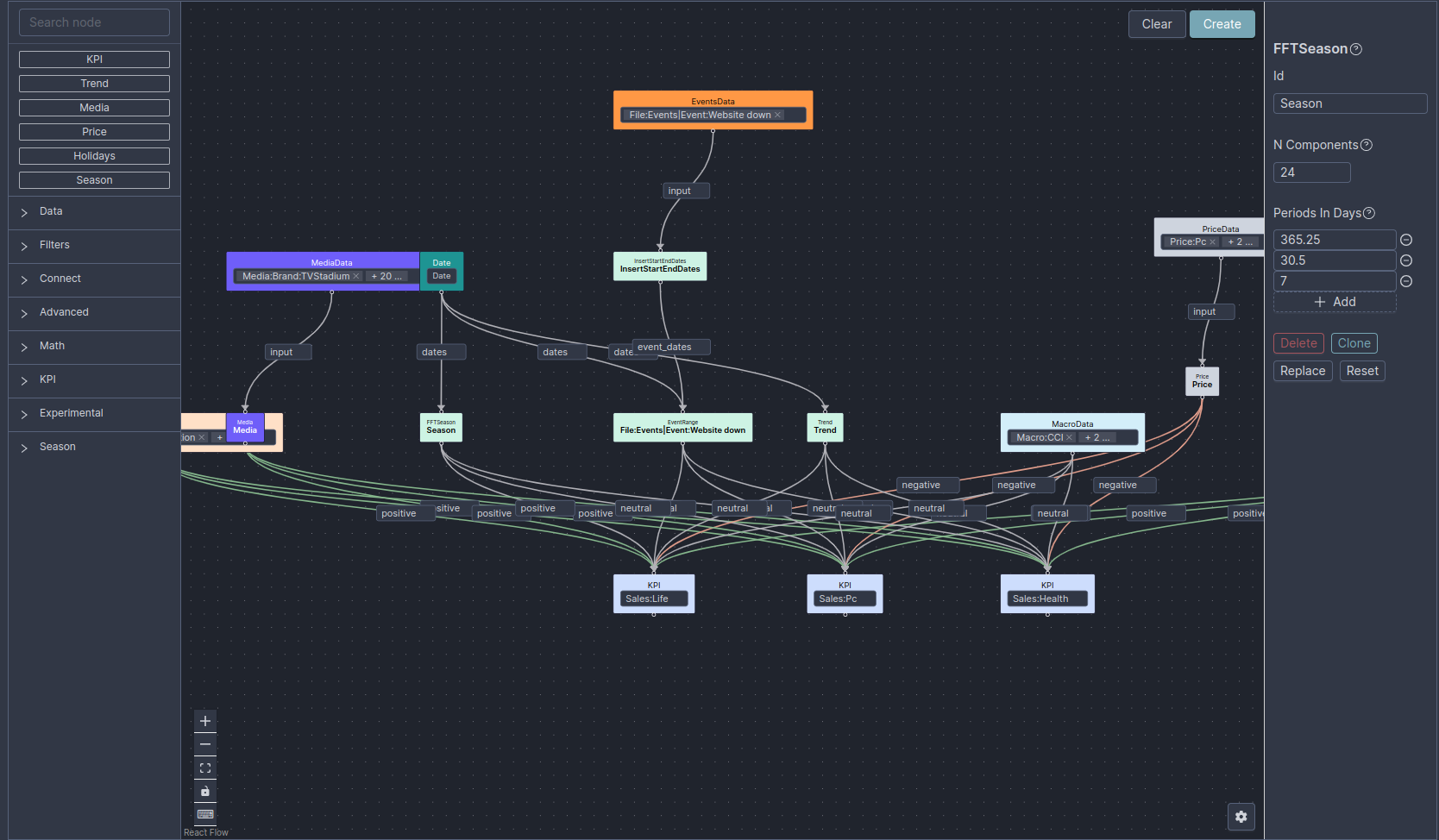
-
Nodes:
Drag nodes from the left sidebar into the central canvas to incorporate them into your model. Each node performs a distinct function, such as representing a data variable (e.g., sales or ad spend), applying a transformation (e.g., adstock for carryover effects), or defining a distribution (e.g., Normal or Poisson for likelihoods).- Configure a Node: Select a node to access its configuration panel on the right. Here, you can fine-tune parameters like prior distributions, effect constraints, or scaling factors to embed domain expertise—such as setting a positive prior for marketing ROI or incorporating seasonality.
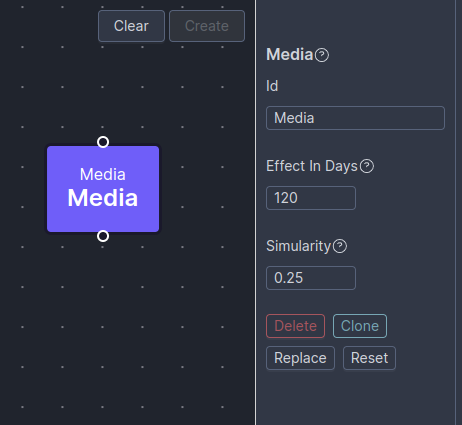
- Configure a Node: Select a node to access its configuration panel on the right. Here, you can fine-tune parameters like prior distributions, effect constraints, or scaling factors to embed domain expertise—such as setting a positive prior for marketing ROI or incorporating seasonality.
-
Edges:
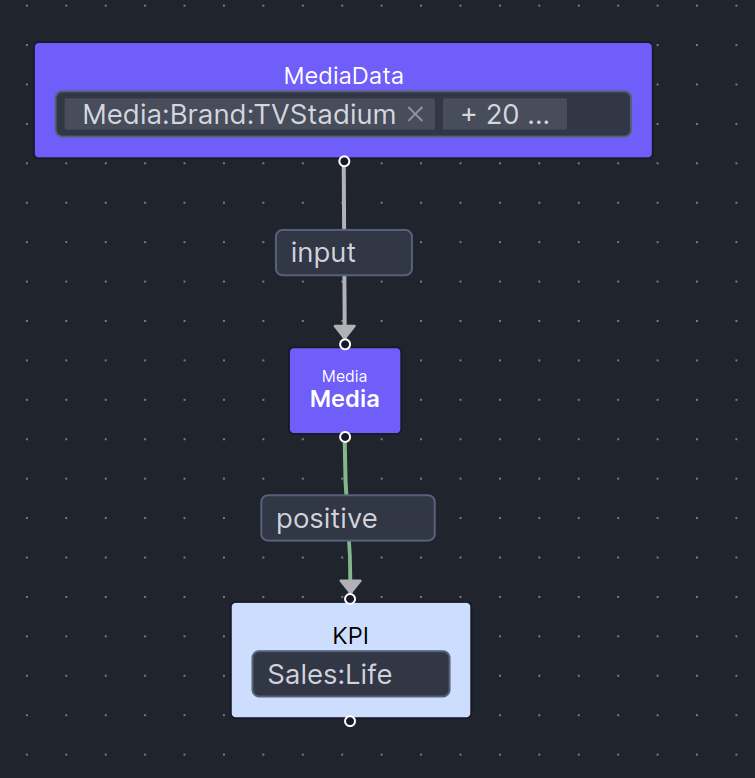
Connect nodes by dragging from an output port (on the right of a node) to an input port (on the left of another). Edges not only link components but can also carry attributes that specify relationships, enhancing model expressiveness:- Define the directional impact of a variable on a KPI (e.g., positive, negative, or unconstrained).
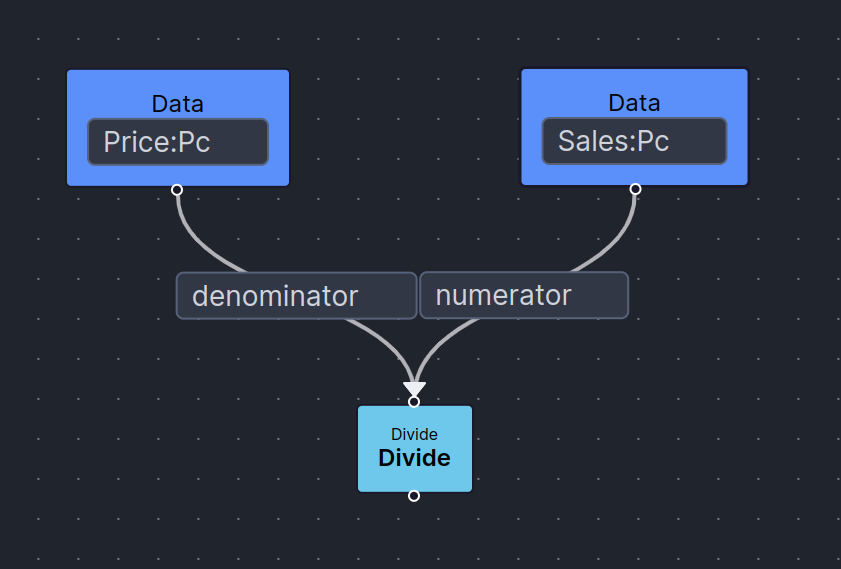
- Specify the role of the source node in the target (e.g., as a multiplier, divisor, or additive term in operations like summation or division).
- Define the directional impact of a variable on a KPI (e.g., positive, negative, or unconstrained).
-
Insert Basic Graph:
Kickstart your custom model by inserting a pre-configured "Basic Graph," which mirrors the structure of a model created via the [Basic Model Builder](../Basic Model Builder.md). This provides a solid foundation that you can then modify—adjusting nodes, reconfiguring edges, or adding new elements to suit your needs.Starting with the Insert Basic Graph option is highly recommended for efficiency. It automates the initial setup, allowing you to focus on refinements rather than building entirely from scratch.
-
-
Advanced Settings (Optional)
Customize training parameters such as the number of samples, learning rate, epochs, and date ranges for training/hold-out periods. Enable automatic post-training actions like generating Predictions, Attributions, or activating the model as the [active model](../Active Model.md).
Validate your graph structure before training: Ensure there are no cycles, all required inputs are connected, and the model aligns with your business logic. Use tooltips in the editor for guidance on node/edge options, and test with a small dataset subset to iterate quickly.
Once your model is configured and submitted, Alviss AI will train it in the background using Bayesian inference for robust uncertainty quantification. Upon completion, review performance metrics, activate the model for use in dashboards, or refine further.