Graph Editor
Master the Graph Editor in Alviss AI for efficient model building.
The Graph Editor is the visual interface at the heart of the [Advanced Model Builder](../Advanced Model Builder), enabling you to construct, modify, and refine model structures through an intuitive drag-and-drop system. Representing models as directed graphs, it allows for precise definition of variables, transformations, distributions, and relationships—empowering advanced users to embed domain knowledge and capture complex business dynamics.
To maximize efficiency in the Graph Editor, familiarize yourself with these practical tips and features. They streamline workflows, from node configuration to bulk operations, making it easier to build sophisticated models for tasks like attribution analysis, simulations, and optimizations.
Side Menu Configuration
When you left-click on a node or edge in the graph, a contextual menu opens on the right side of the editor. This menu displays detailed information about the selected element and provides options to update its configuration, such as adjusting parameters, priors, or attributes.
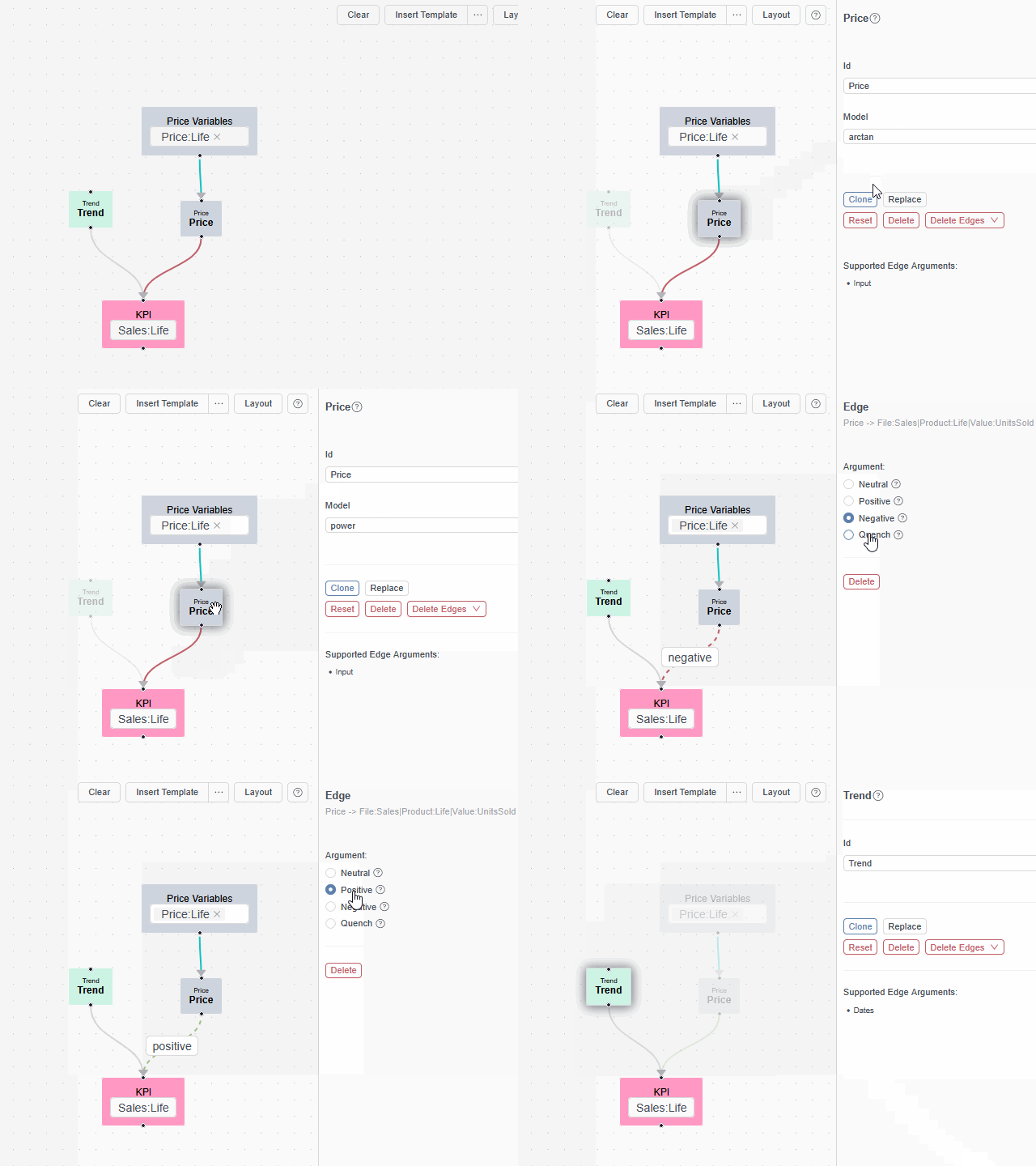
This feature allows for quick, targeted edits without disrupting your overall graph layout.
Right-Click Menu
Right-clicking on a node or a group of nodes summons a contextual menu with specialized actions, such as deleting, duplicating, or grouping elements. This menu adapts based on the selected item(s), offering relevant tools to manage your model structure efficiently.
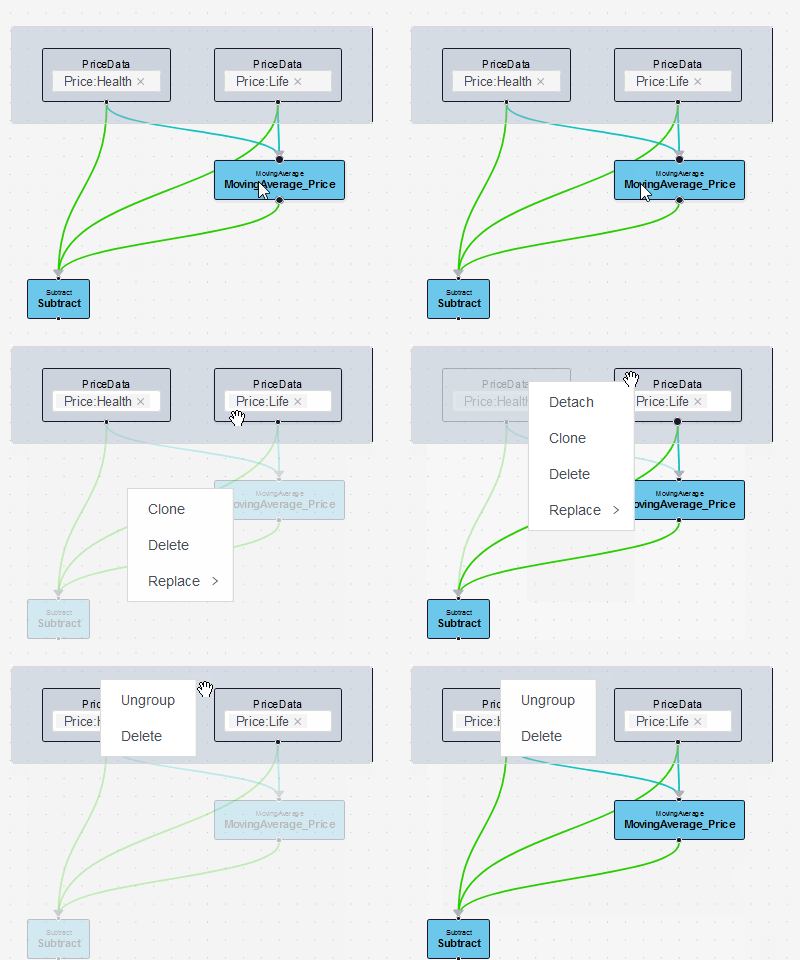
Use this for rapid operations on individual components or selections.
Proximity Connect
Drag a node near another to preview a temporary edge connection. If you release the node in close proximity (and no existing connection is present), the editor automatically creates the edge. This simplifies building relationships between nodes.
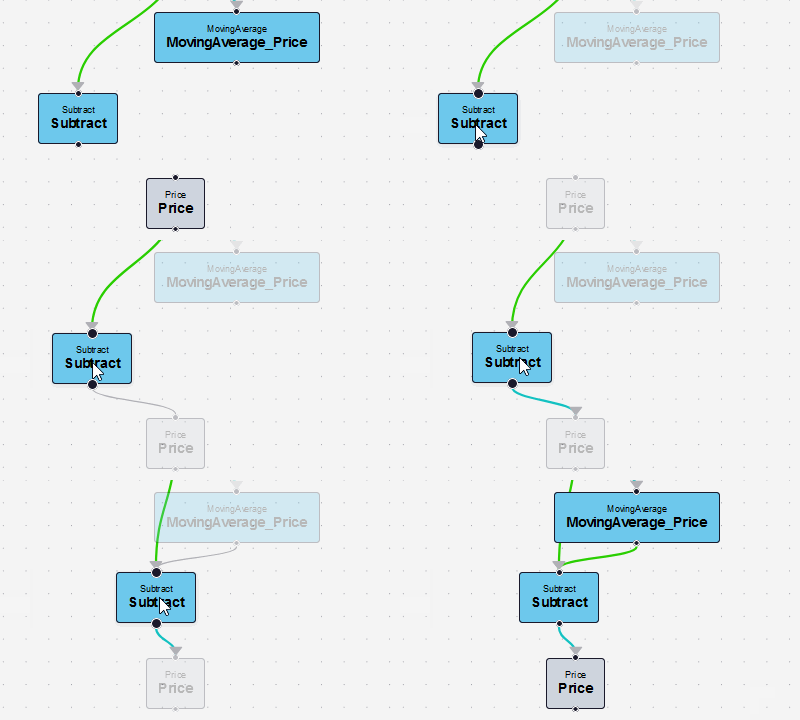
To disable this auto-connect behavior temporarily, hold the Shift key while dragging.
Proximity Connect is great for initial graph sketching but can be toggled off during precise rearrangements to avoid unintended links.
Select Multiple Nodes
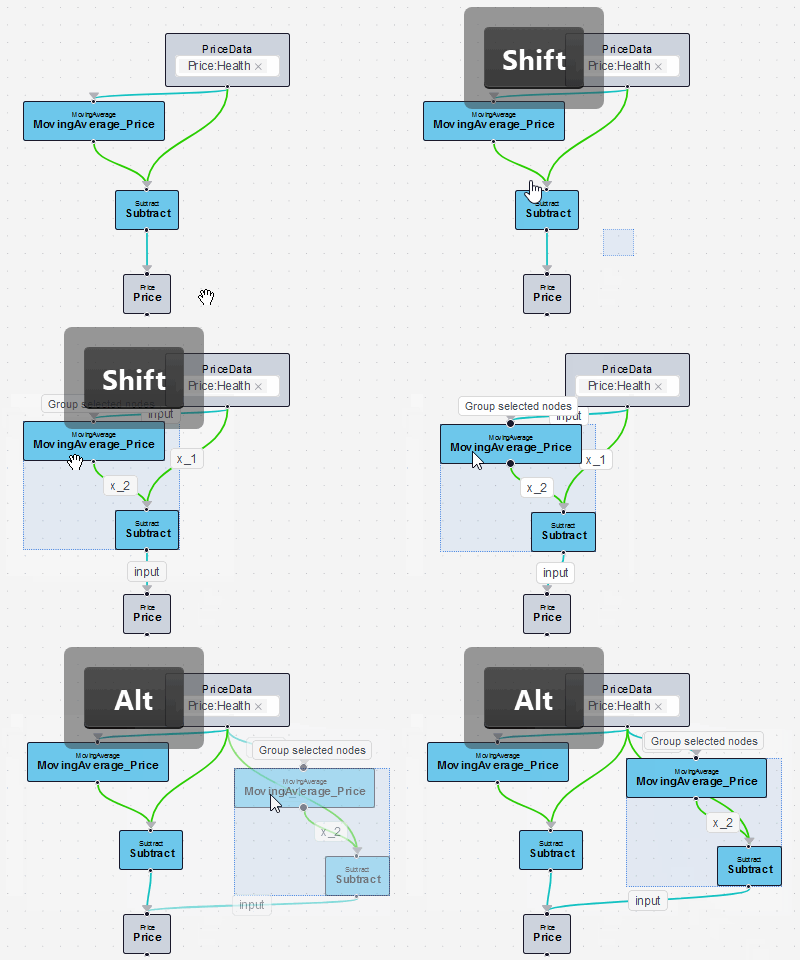
Multi-selection enables batch operations like moving, cloning, or connecting groups of nodes. There are two methods:
-
Hold
Shift, then left-click and drag a selection box over the desired nodes.
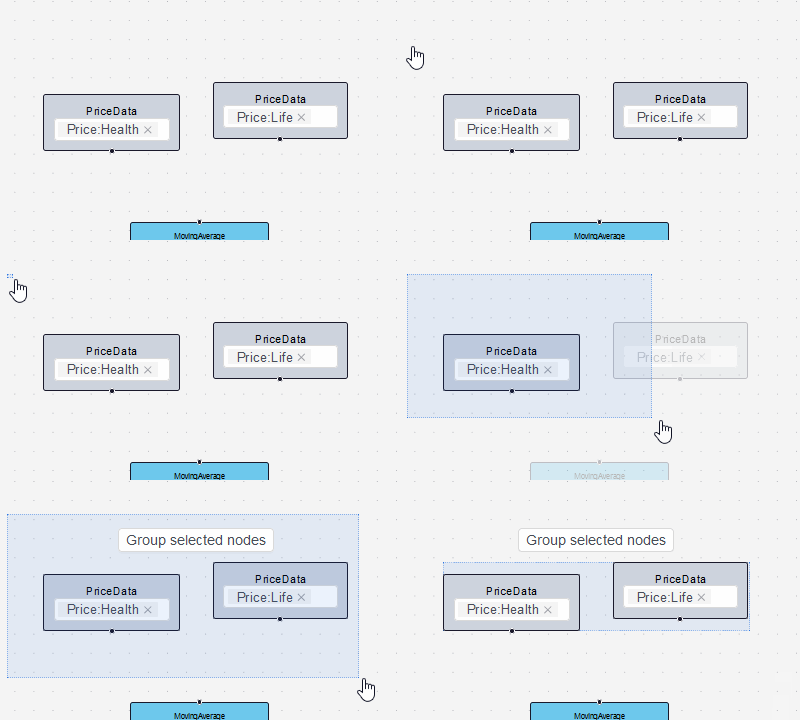
-
Hold
Ctrl(or `` on macOS), then left-click individual nodes one by one.
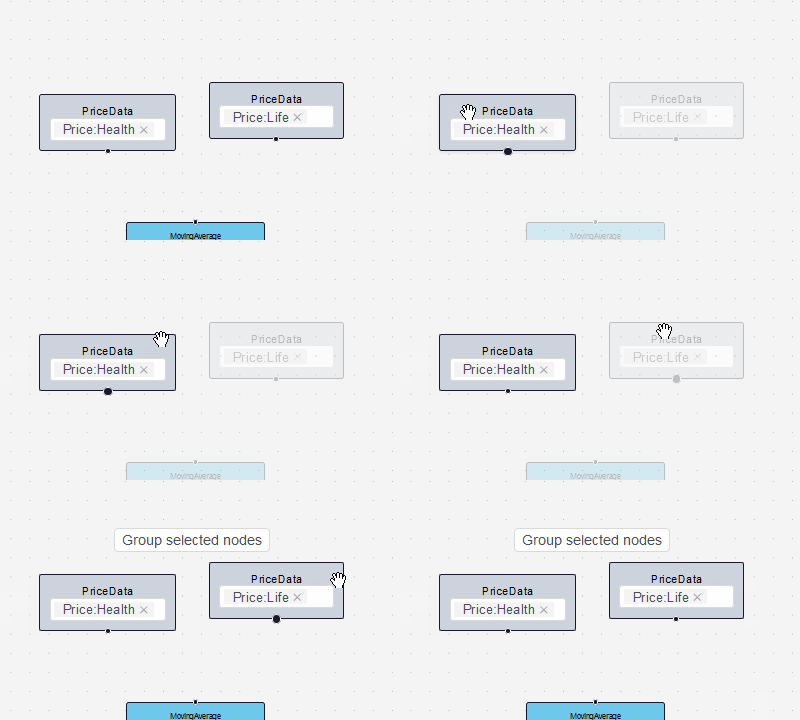
Once selected, you can perform actions on the entire group, enhancing productivity for complex models.
Multiple Connections
With two or more nodes selected, creating a connection from one selected node to a target will automatically replicate that connection from all other selected nodes to the same target. This is ideal for applying uniform relationships across similar components.
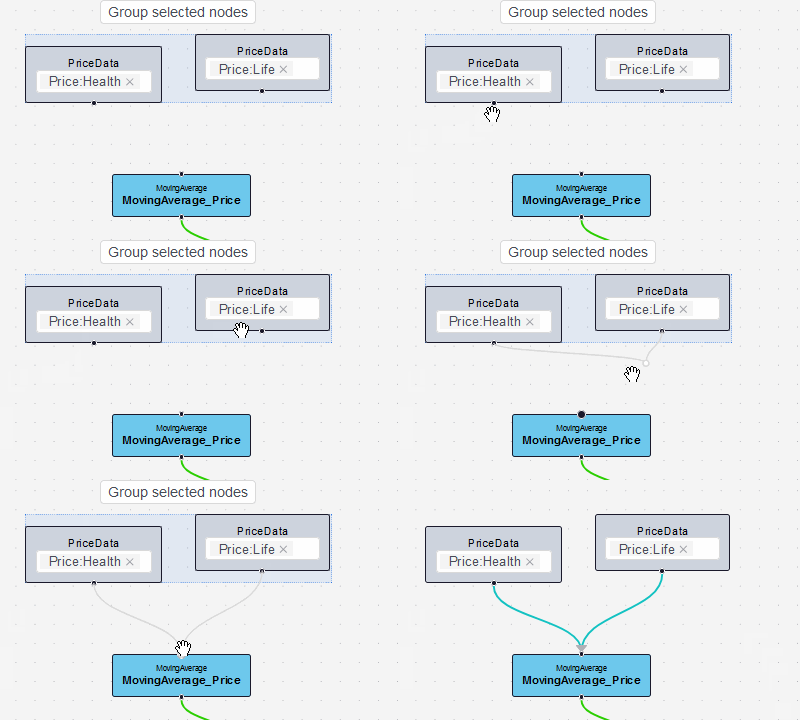
This feature saves time when modeling symmetric or hierarchical structures, such as multiple media channels feeding into a summation node.
Reconnect Edge
Edges can be dynamically reassigned by left-clicking and dragging the segment near a handle (watch for the cursor change). Release on a new input/output port to reconnect. The editor attempts to preserve any existing edge attributes, like directional impact or functional roles.
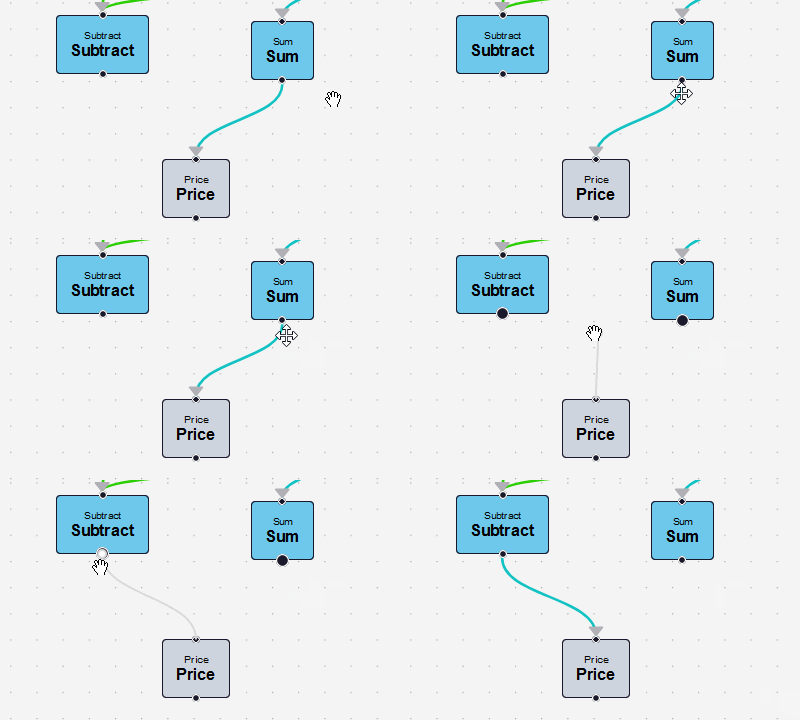
This flexibility allows for iterative refinements without recreating edges from scratch.
Clone by Dragging
To duplicate a node (or group), hold Alt while dragging it. A temporary copy appears with its connections intact; release to make it permanent.
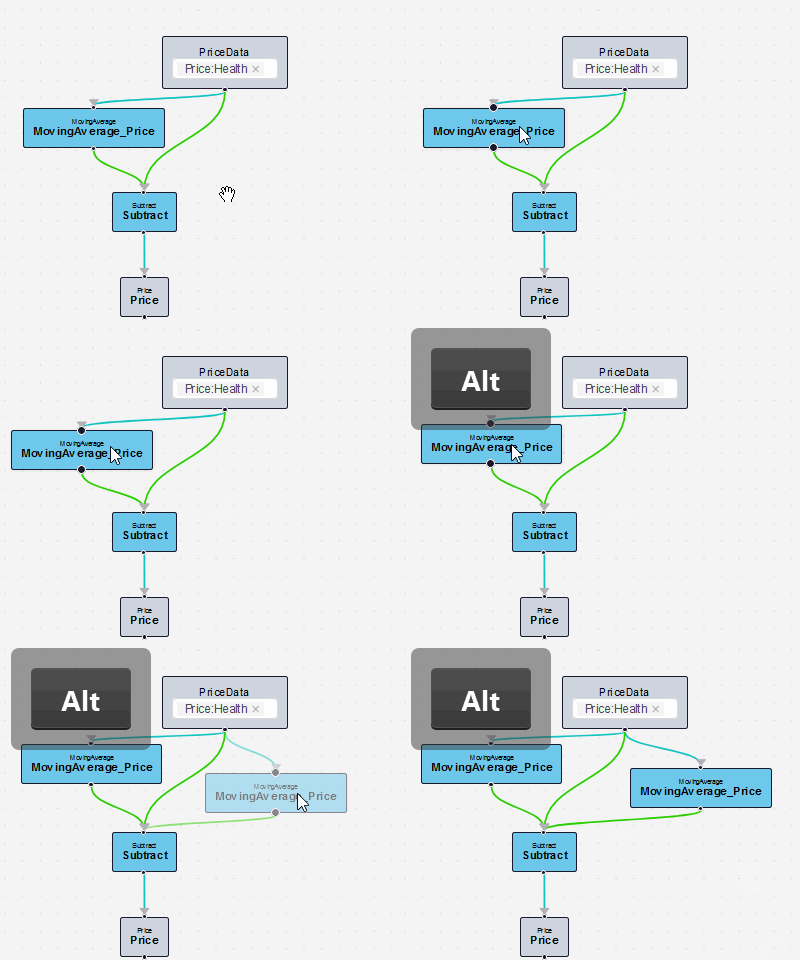
To cancel, release Alt before dropping the node.
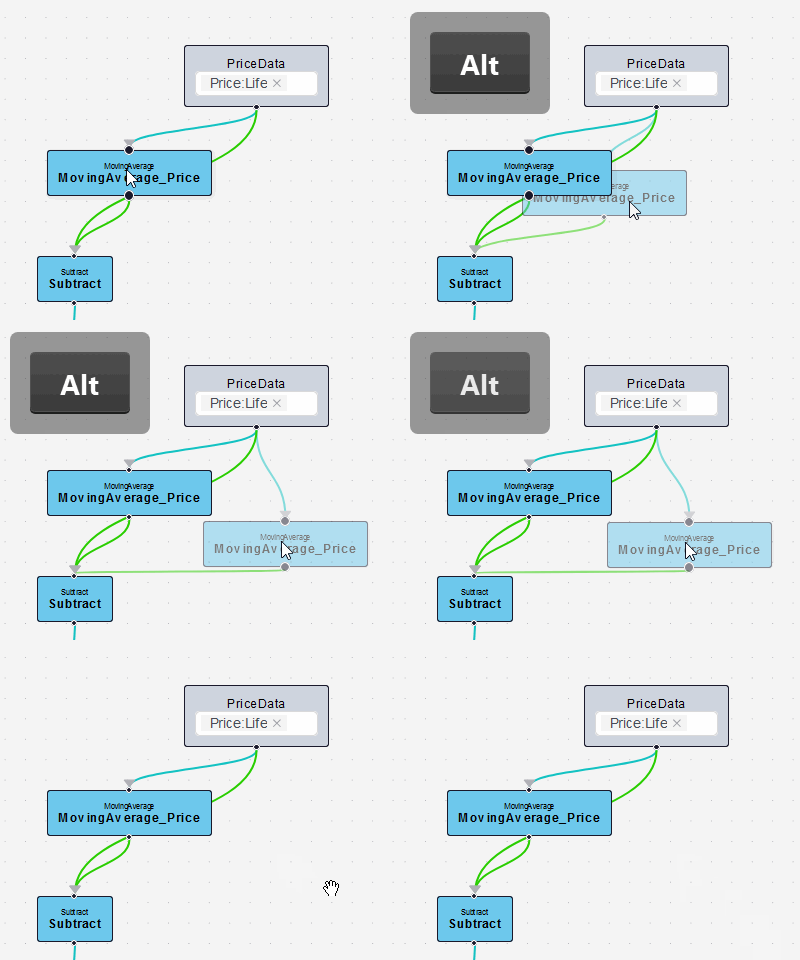
This works with multi-selections too:
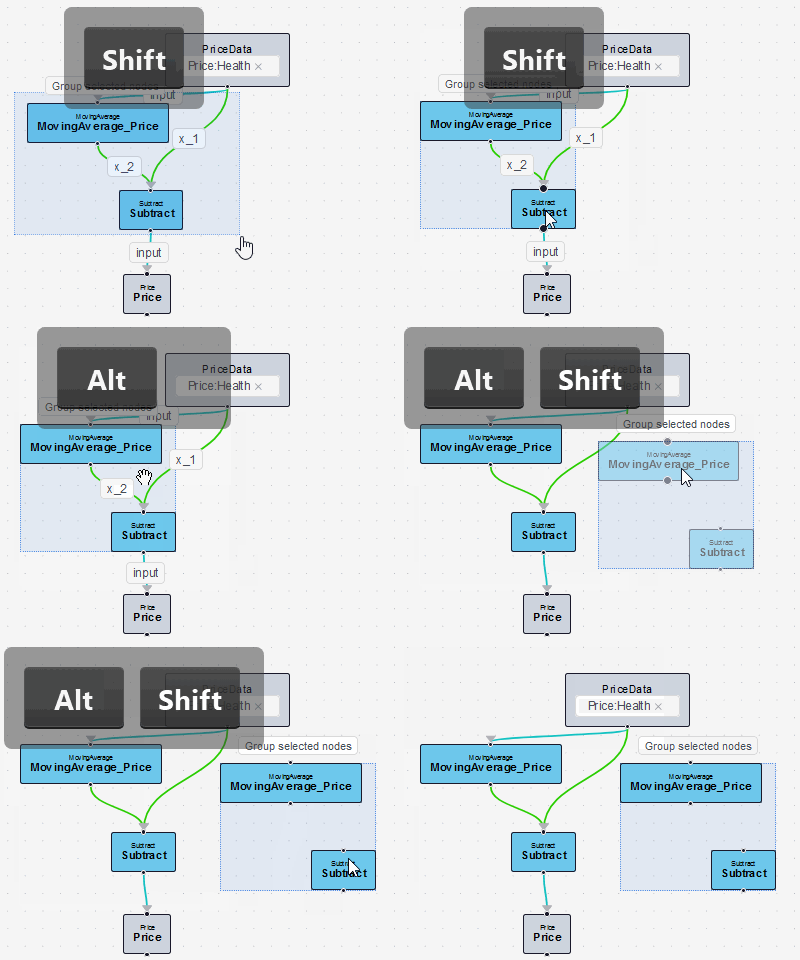
For connection-free clones, hold Alt + Shift while dragging.
Cloning is particularly useful for experimenting with variations or scaling subgraphs.
Select Multiple Edges
Unlike nodes, edges are selected individually: Hold Ctrl (or `` on macOS), then left-click each edge one by one.
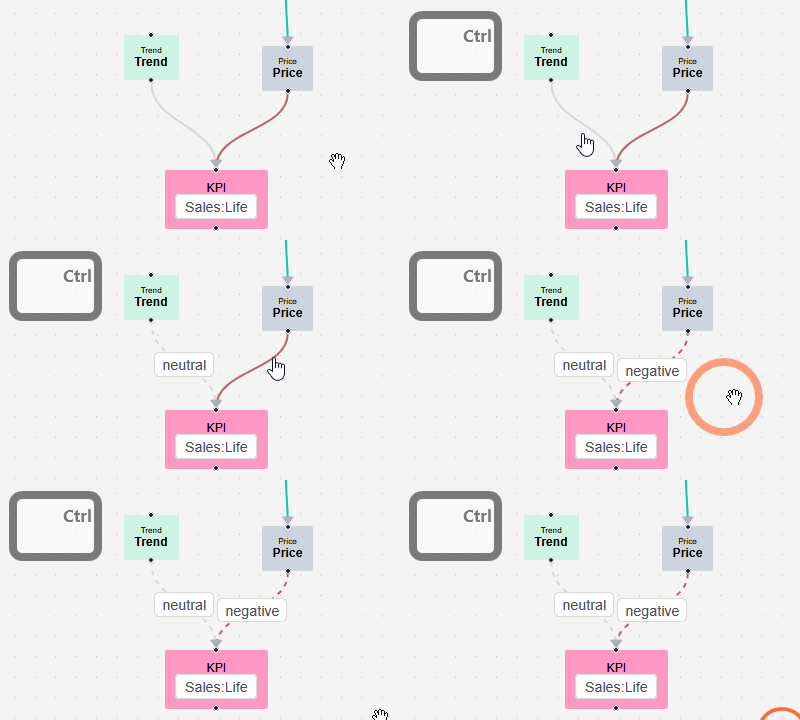
This prepares edges for bulk actions, ensuring precise control over connections.
Edges Bulk Actions
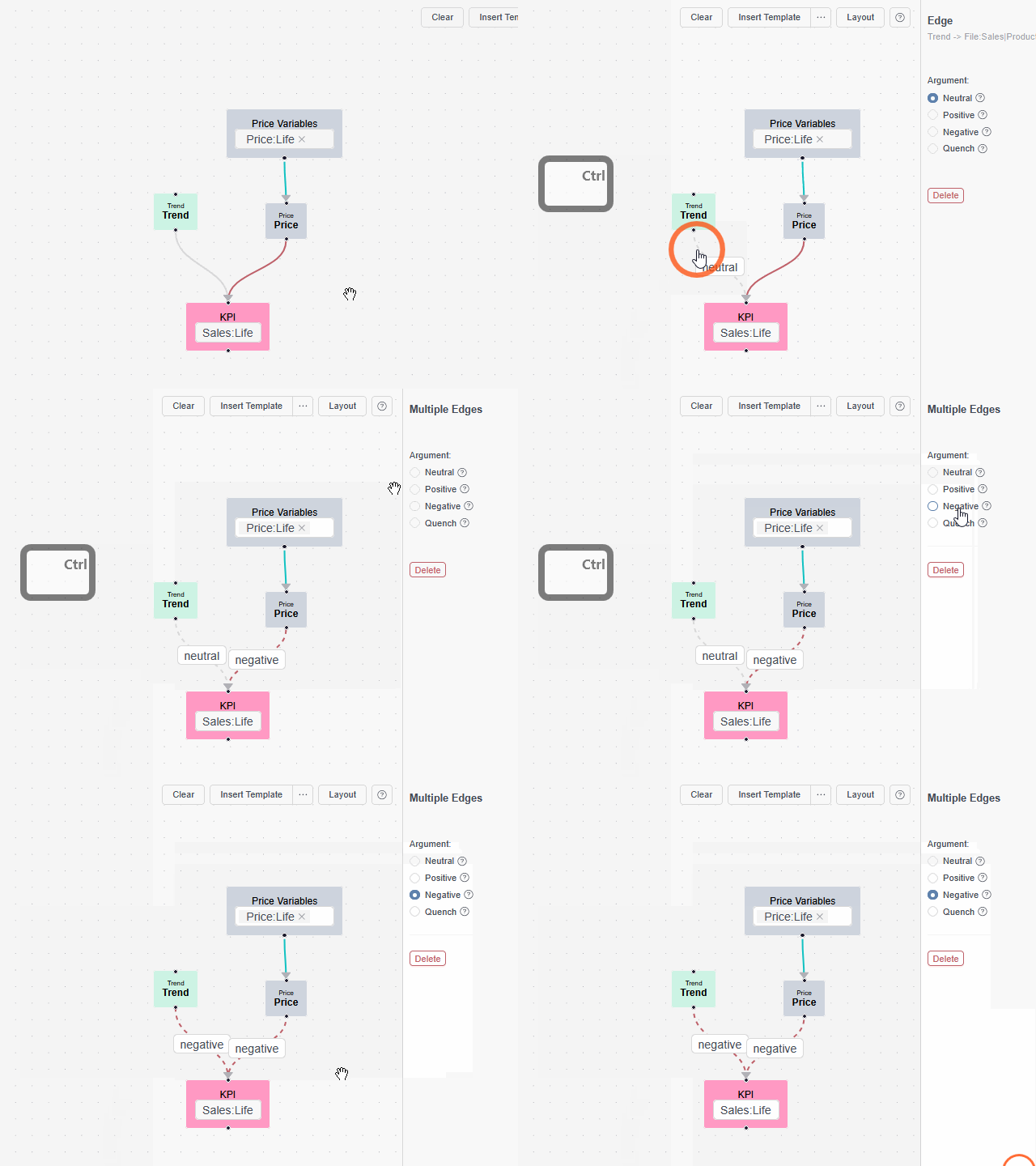
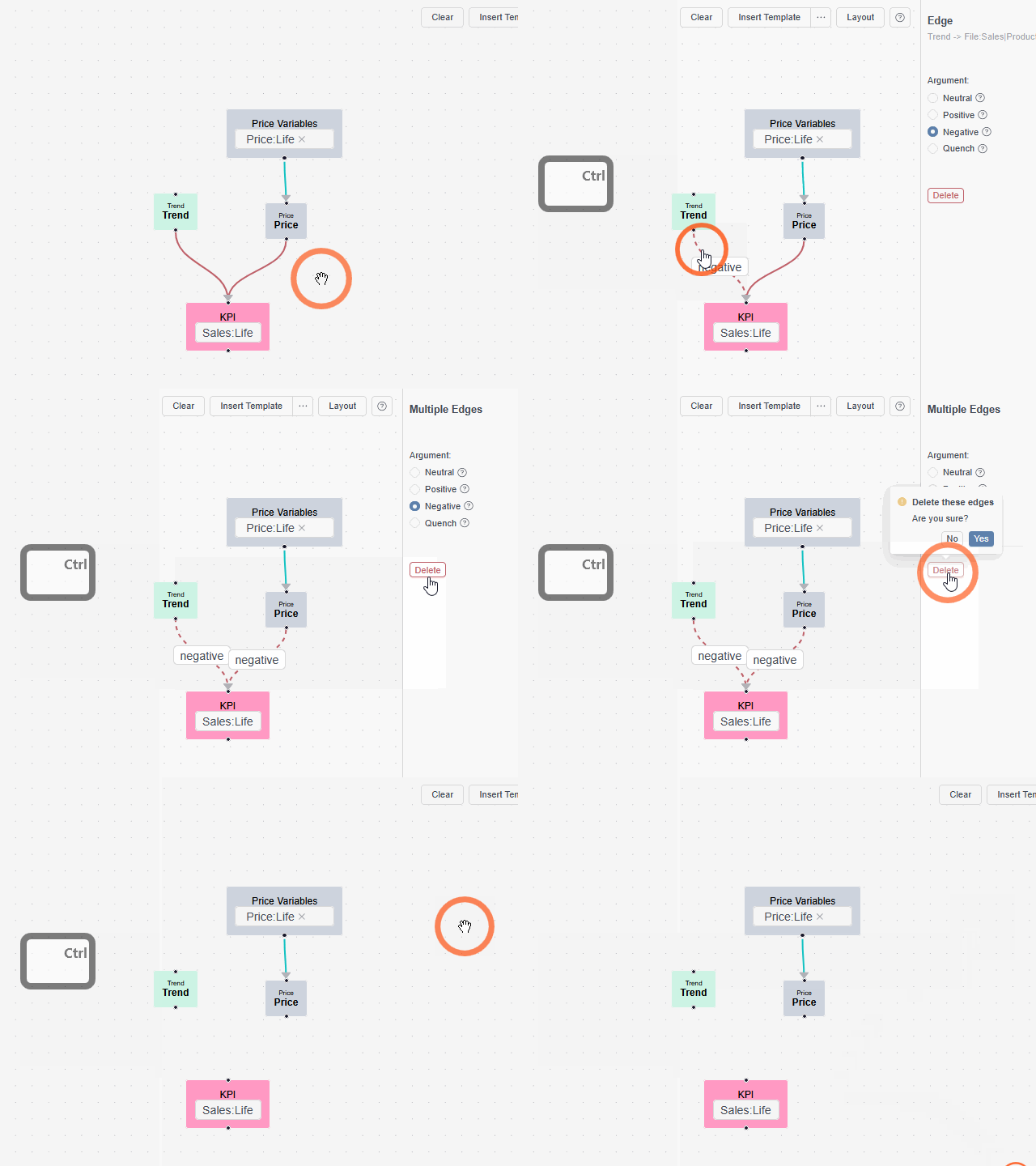
Selecting two or more edges opens the "Multiple Edges" menu on the right, enabling batch operations:
-
Bulk Update Arguments: Modify attributes (e.g., impact direction) across all selected edges simultaneously. This only applies if the edges share the same type.
-
Bulk Delete: Remove all selected edges at once, or simply press the
Deletekey.
These actions accelerate maintenance of large graphs, especially when refining models based on new insights from datasets or performance reviews.
Always validate your graph after bulk changes to ensure model integrity—check for disconnected nodes or invalid flows using the editor's built-in validation tools.
Import - Export
For greater flexibility and collaboration, you can import and export your graph structures as JSON files. This allows you to save models externally, share them with team members, or integrate with version control systems. To access these options, use the dedicated buttons in the Graph Editor toolbar.
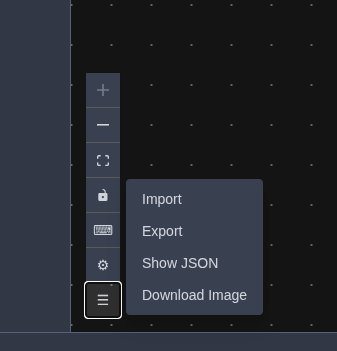
- Export: Download the current graph as a JSON file, capturing all nodes, edges, configurations, and attributes.
- Import: Upload a previously exported JSON file to load a graph into the editor, restoring the structure for further editing or training.
When exporting, include a descriptive filename (e.g., "Media_Optimization_Model_v1.json") to track versions. For imports, ensure the JSON aligns with your current dataset variables to avoid mapping issues.
Imported graphs may require reconfiguration if variable names or project settings differ. Always review and validate after import before proceeding to training.